Console Setup
Manual Setup
Bidding Adapter
BidMachine's bidding adapter enables real-time bidding integration with AdMob. This setup allows BidMachine to participate in AdMob's bidding auctions.
- Android API level 23 or higher
- BidMachine adapter version 3.4.0.1 or later (Use the latest available BidMachine adapter version for all formats)
- Latest Google Mobile Ads SDK
Step 1: BidMachine Dashboard Configuration
- Navigate to the Source tab in your BidMachine dashboard and select Edit. Copy the Integration ID for later use in the AdMob console.

- Click Add Placement to create new placements
You can also create and manage placements programmatically using the Placement Management API — useful when provisioning placements at scale.
When setting up your mediation group, use the appropriate bundle identifier format:
- Android apps: Use alphabetic bundle identifier (e.g.,
com.example.app) - iOS apps: Use numeric app ID (e.g.,
123456789)

- Save your changes and note the Placement ID for later use

- Access the app-ads.txt tab in the BidMachine dashboard, copy the content, and append it to your website's app-ads.txt file
Step 2: AdMob Console Setup
-
Sign into your AdMob account
-
Navigate to Mediation and either create a new mediation group or edit an existing one

- Configure ad format and platform settings

- Select Add ad source under the Bidding card


- Locate and choose BidMachine from the available networks

-
Establish the partnership agreement if prompted
-
Add mapping with your Placement ID from the BidMachine dashboard

- Add BidMachine to GDPR and US state regulations ad partners lists per AdMob's European and US state regulations settings
Step 3: Enable Secure Signals & User Consent
BidMachine will not bid unless Secure Signal sharing is enabled and BidMachine is allowed under your User Consent settings in the AdMob/GAM console. These toggles are off by default and are the most frequent reason publishers see no fill after an otherwise correct setup. Verify both before troubleshooting anything else.
1. Enable Secure Signal sharing
Secure signals are the encrypted bidding parameters BidMachine needs to participate in the auction. They must be explicitly enabled for the BidMachine bidder:
- Sign in to your Google Ad Manager account
- Go to Delivery → Bidders, open SDK Bidding, and select BidMachine
- Under Secure signal sharing (required), check whether each item shows Enabled or Disabled
- If anything is marked Disabled, click the link for each item to enable the library and the sharing of signals to BidMachine
- Confirm signals are being passed using Delivery Tools or Ad Inspector (the Buyer generated data field in the third-party bidding parameters should show a substantial character count)
Follow Google's official guide for exact screenshots and current console paths: Verify your SDK Bidding setup → Enable secure signals.
2. Allow BidMachine under User Consent settings
- In the AdMob console, open Privacy & messaging and review your European regulations (GDPR) and US state regulations settings
- Make sure BidMachine is added to your list of allowed ad partners / commonly used ad partners for each applicable regulation
- If BidMachine is not on the consent vendor list, no consent signal will be passed and bidding will fail
The console settings above only work if your app also forwards consent correctly — see Step 4: Privacy Implementation below.
Step 4: Privacy Implementation
BidMachine automatically reads GDPR consent set by consent management platforms including UMP SDK. Similarly, it reads GPP consent automatically for US state compliance.
Ensure you have implemented a Consent Management Platform (CMP) in your app according to AdMob's privacy requirements.
Step 5: Testing
-
Register your test device for AdMob
-
Enable test mode in BidMachine's SDK documentation
-
Use Ad Inspector's single ad source testing feature to verify BidMachine ads
-
Disable test modes before production release
Waterfall Adapter BETA
Waterfall integration is currently in beta. Please contact your BidMachine account manager for setup assistance and access.
BidMachine waterfall integration allows you to add BidMachine as a custom event in your AdMob mediation waterfall with specific price points.
Use Use the latest available BidMachine adapter version for all formats.
Manually
To set up multiple placements, repeat the setup process for each placement with its corresponding Placement ID.
1. BidMachine Dashboard Configuration
-
Navigate to the Source tab in your BidMachine dashboard and select Edit
-
Click Add Placement to create new placements (or create them programmatically via the Placement Management API)
-
Save your changes and note the Placement ID for later use
-
Access the app-ads.txt tab in the BidMachine dashboard, copy the content, and append it to your website's app-ads.txt file
2. AdMob Console Setup
-
Sign into your AdMob account
-
Navigate to Mediation and either create a new mediation group or edit an existing one
-
Configure ad format and platform settings
-
Select Add Ad Source under the waterfall section
-
Enter the eCPM value for this price point

-
Locate and choose BidMachine from the available networks
-
Add mapping with your Placement ID from the BidMachine dashboard
-
Click Done to save the ad source
-
Repeat steps 4-8 for each price point you want to add
Recommended Price Points:
| Banners/Native/Mrec | Skippable (Int + Video) | Non-Skippable (Rewarded) |
|---|---|---|
0.1, 0.3, 0.4, 0.5, 1.0, 1.5, 3.0 | 1.0, 5.0, 10.0, 20.0, 30.0, 40.0, 70.0, 100.0 | 1.0, 5.0, 10.0, 20.0, 30.0, 40.0, 70.0, 100.0, 200.0 |
Not all ad units will be called in waterfall but only the ones that match BidMachine bid prices.
3. Privacy Implementation
BidMachine automatically reads GDPR consent set by consent management platforms including UMP SDK. Similarly, it reads GPP consent automatically for US state compliance.
Ensure you have implemented a Consent Management Platform (CMP) in your app according to AdMob's privacy requirements.
4. Finalizing Setup
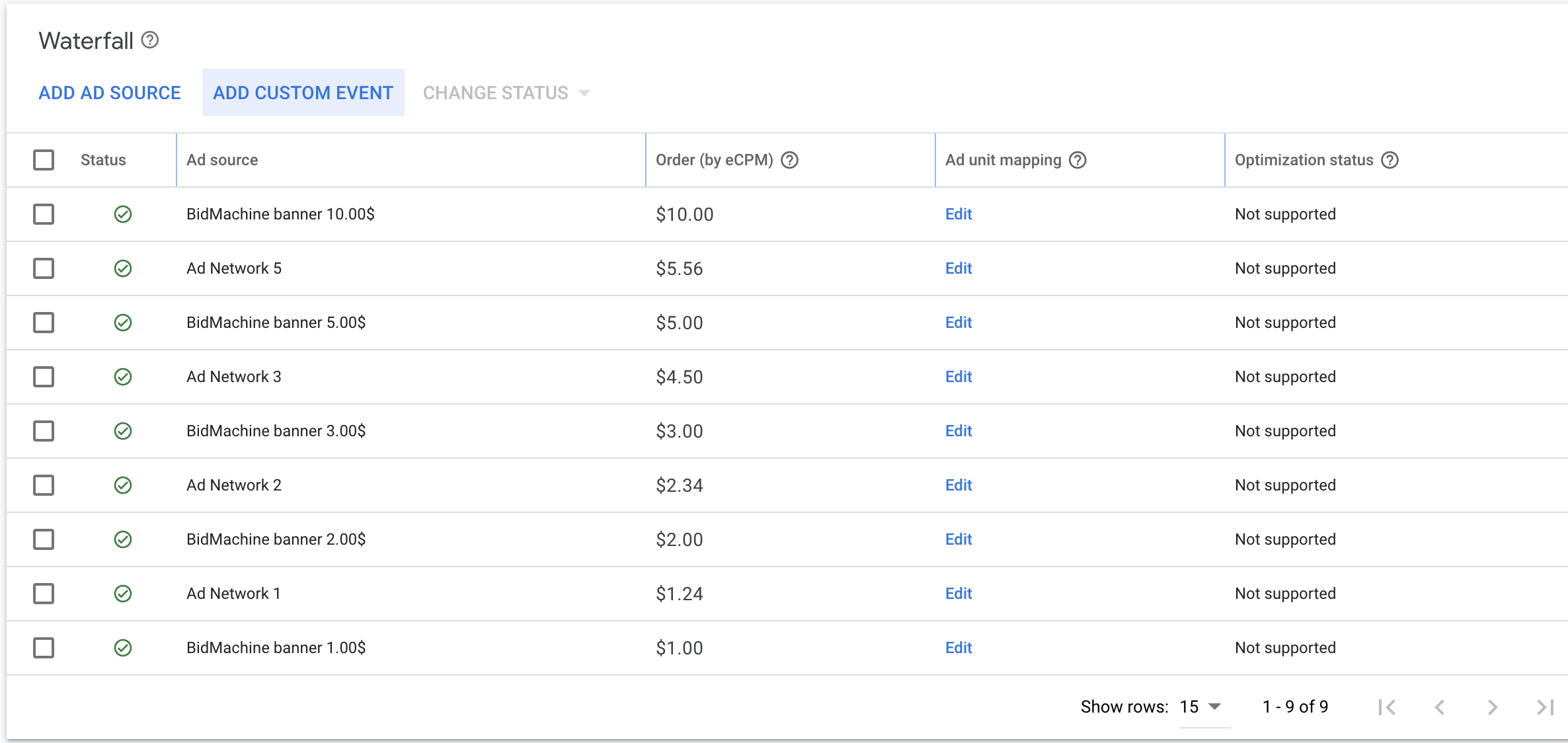
Once you are done creating ad sources, you should see the final waterfall with your networks and newly created BidMachine ad sources.
6. Testing
-
Register your test device for AdMob
-
Enable test mode in BidMachine's SDK documentation
-
Use Ad Inspector to verify BidMachine waterfall ads at different price points
-
Disable test modes before production release